
Cisco ISE is a beast. As friendly as a Serbian bouncer, with a learning curve like the face of El Capitan, and as intuitive as shoe shopping for a fish. The official Cisco book on it: (https://www.ciscopress.com/store/ccnp-security-identity-management-sise-300-715-official-9780136677734) is over 1,000 pages long and each page is packed full of chewy techy goodness. Nonetheless, if you work in network security, ISE is probably something you should know about. And as the old adage goes, you eat an elephant one bite at a time. The bite I propose to take is to use Trustsec and Security Group Tabs (SGTs), defined on ISE but enforced on a Cisco FTD (Secure Firewall) to apply policy which allows one trusted host to get to an ssh server and denies another untrusted one. I will be using MVC (Minimum Viable Configuration) to get this up and working.
For this lab I am going to run an evaluation ISE VM in VMware workstation (you can download a Cisco VM and get a 90 day evaluation for free) and bridge it to my Cisco Modelling Labs (CML) VM – via the NUC I’m running the whole shebang on. (My NUC has 96GB of memory and you’ll need something fairly beefy if you want to try this yourself)
This is the lab in CML:
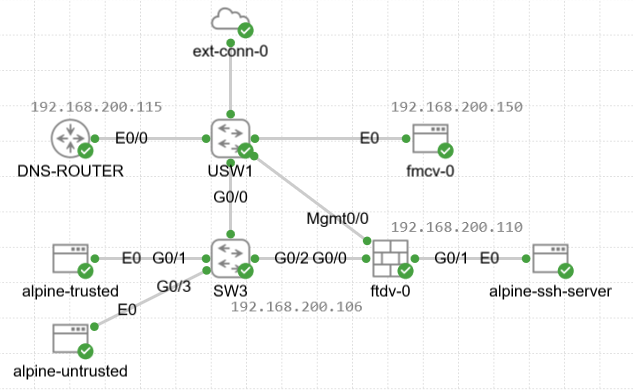
From the top we have an external connector (ext-conn-0) to allow the lab to reach the ISE via the NUC. You can either set this up as nat (to get to the Internet) or bridged, and as mentioned above we need the latter:
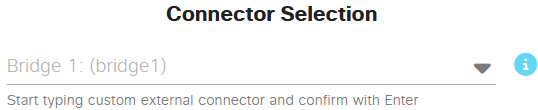
This will mean I can effectively bridge everything from my NUC via a Microsoft loopback interface installed on it:

This is addressed as 192.168.200.10/24. The ISE server is addressed as 192.168.200.100 and is bridged via VMnet0 which is mapped as follows in VMware:

If we consider 192.168.200.0/24 as the management network then the other nodes with addresses on this subnet are displayed in the diagram above.
alpine-trusted and alpine-untrusted are simple Linux hosts which want to connect to alpine-ssh-server which is another Linux host running an ssh server. To do this they have to go through the ftdv-0 firewall. Spoiler alert only one of these will be successful.
The alpine-trusted machine has its switch port on SW3 set up with MAB authentication (MAC authentication bypass) and the switch itself will have the ISE server defined as a radius server. The ISE server will assign an SGT label ‘ssh_access’ the to the alpine-trusted machine by dint of its mac address. The alpine-untrusted machine will just be connected on a standard access port in the same vlan as its trusted equivalent but will not receive an SGT. I’ll append the switch configuration but the relevant config for the G0/1 is:
interface GigabitEthernet0/1
description “Link to MAB authenticated trusted host”
switchport access vlan 60
switchport mode access
negotiation auto
authentication event fail action next-method
authentication open
authentication order mab
authentication priority mab
authentication port-control auto
mab
dot1x pae authenticator
spanning-tree portfast edge
end
I found I couldn’t get DHCP working without ‘authentication open’. In a production network you might not have this setting. This explanation below for its requirement comes from an intermittently reliable source:
On an access-controlled port:
• The port starts in unauthorized state
• In unauthorized state:
o DHCP is blocked
o ARP is blocked
o ICMP is blocked
• Because DHCP is blocked:
o The host never sends usable traffic
o The switch never learns a MAC
• Because no MAC is learned:
o MAB is never triggered
o No authentication session is created
Anyway, the switch port settings above effectively are to make the host authenticate with the ISE.
The ISE is set up as a Radius server on SW3:
aaa group server radius ISE-GROUP
server name ISE
!
aaa authentication dot1x default group ISE-GROUP
aaa authorization network default group ISE-GROUP
aaa accounting dot1x default start-stop group ISE-GROUP
radius server ISE
address ipv4 192.168.200.100 auth-port 1812 acct-port 1813
key cisco123
!
On ISE we have to add the switch as a network device in Work Centers / Network Access
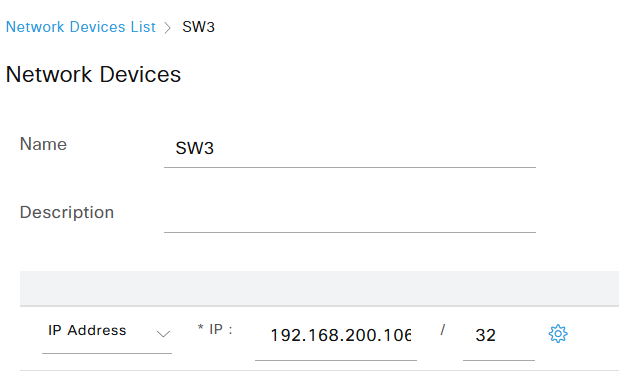
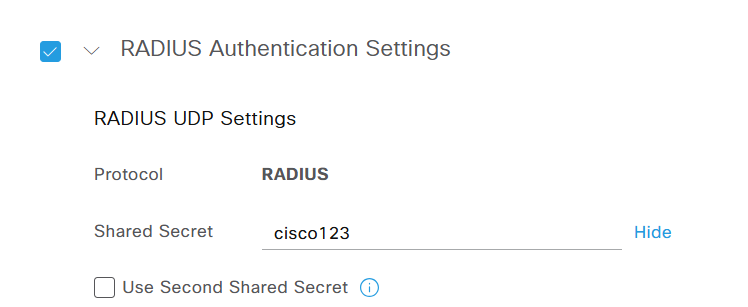
OK, now we need to make ISE aware of our Linux endpoint. As we’re using MAB we do this via adding the host’s mac address in In Administration / Identify Management where we and an add an Endpoint Identity Group called Linux_Devices which now includes the mac address of the alpine-trusted host
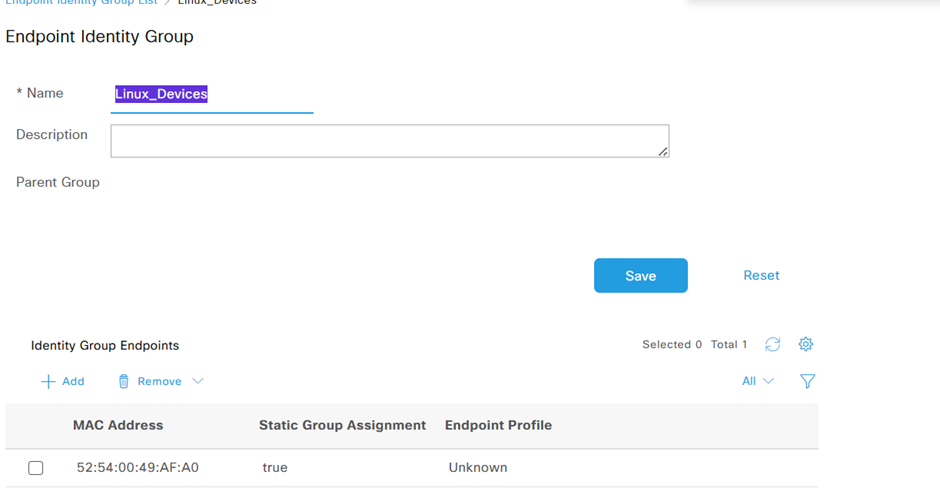
OK – so we have to authenticate the host to allow it access on this port
This is done for us already by dint of a default rule in Wired_MAB in Policy / Policy_Sets

Now for authorization, I propose to give my endpoint an SGT called ‘ssh_access’ by dint of it being in the Identity Group Linux_Devices and to do this I created this authorization rule…

‘Matches-Linux-Devices’ is a condition which just says the device must be authenticated and in the group Linux_Devices and then it will be permitted and receive the SGT ssh_access. This condition looks like this on the ISE:
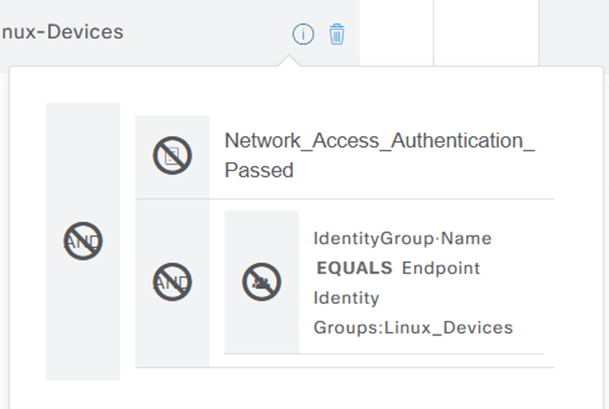
And I forgot to say, I had to add the SGT in Work Centers → TrustSec → Components → Security Groups where it looks like this:
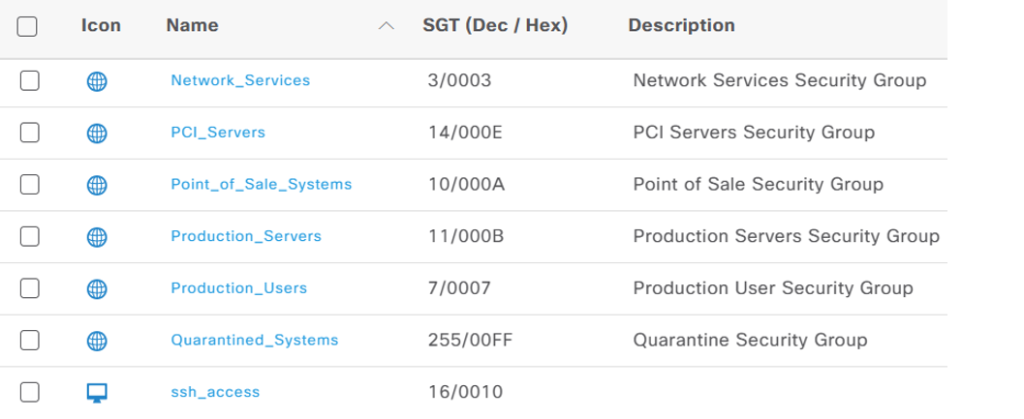
The other entries are pre-defined. OK, keep that SGT hex value in mind. When we bring our Linux host up we can look in the ISE’s live logs and see that the cisco-av-pair is assigned to the ‘username’ with that mac-address:
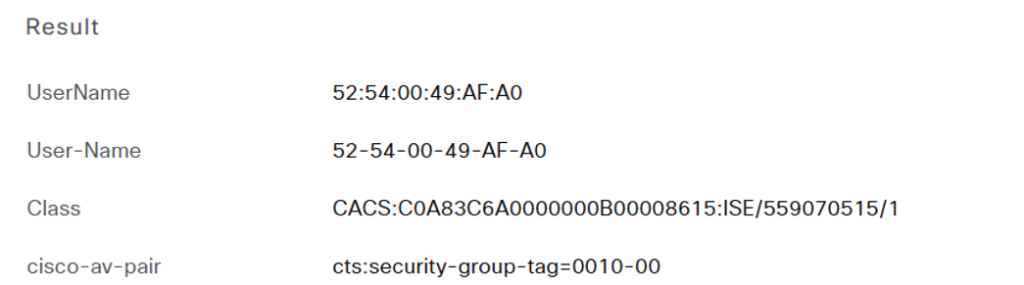
The ISE server will share its database of SGT label mappings with the FMC by dint of pxGrid. The FMC will then have a policy which it deploys to the FTD firewall which stipulates only ip addresses with the relevant SGT label mapping will be able to access the ssh server.
So, configuring the firewall:
If anybody fires up an FMC or FTD in CML they’ll find this doesn’t go into the startup script like an appliance but you can run the following (from expert mode) to be able to define your ip address on both the FMC and FTD. Below is the FTD:
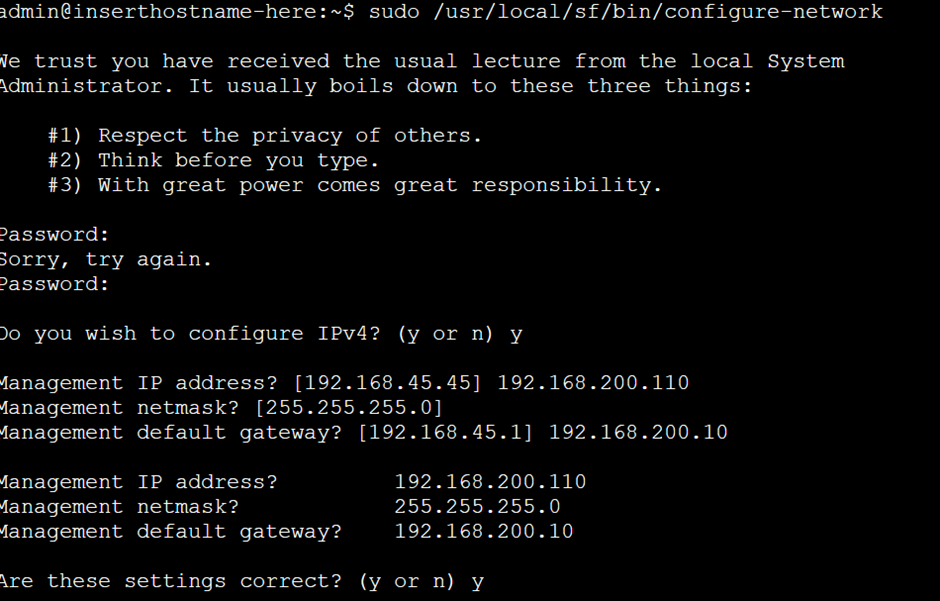
Then exit from expert mode and add the FMC address as a manager:

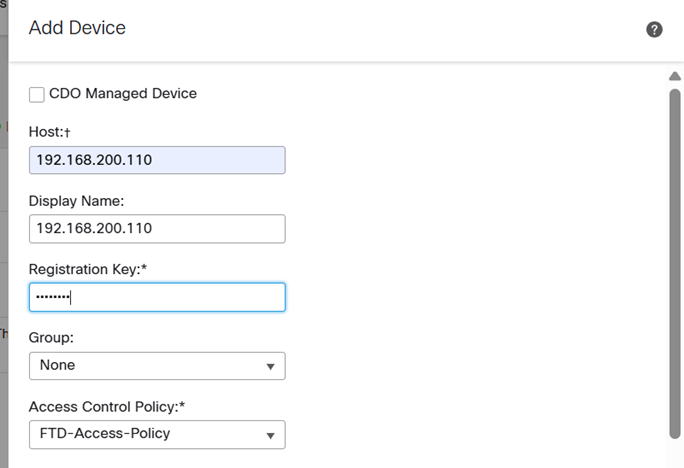
OK, so having addressed the FMC as per above we can browse to it and in Devices / Devices management add the FTD using the same key ‘cisco123‘ as we defined on the FTD.
So we now need to get the ISE to share it’s SGT mappings with the FMC. We enable pxGrid on the ISE in Administration/Deployment – where we click on the ISE:
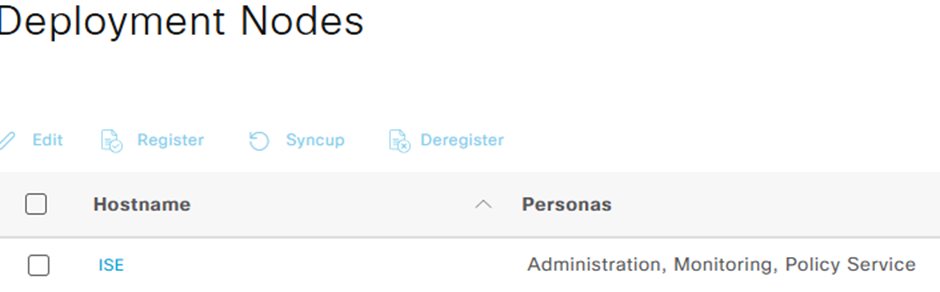
And then get to enable pxGrid

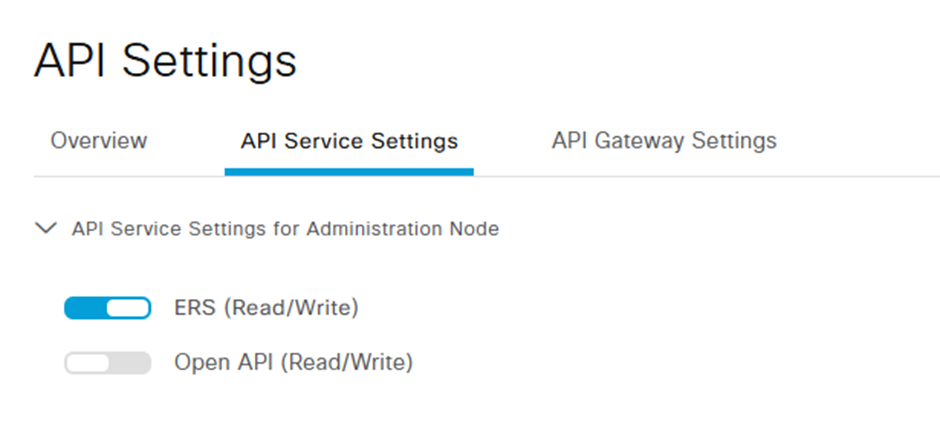
Then we need to delve into Administration / API settings and enable ERS Read/Write (if you want to know why there’s a book I can recommend)
Then we can automatically approve any pxGrid client (our FMC) making said requests (you can approve manually too) in Administration / pxGrid Services.
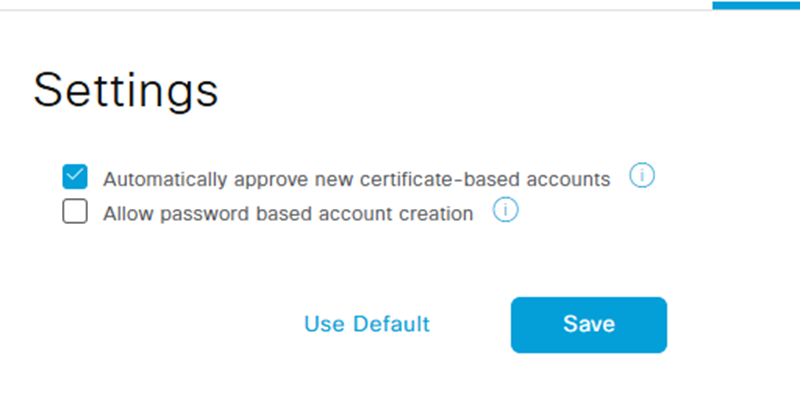
And one more thing, we need to add a user for pxGrid with the admin group ERS Operation attached in Administration / System / Administrators:

We need to set the FMC side up but first I set up a router as a DNS server to handle…well, DNS…

And add relevant entries…

And then pointe the FMC at it in Configuration / Management Interfaces
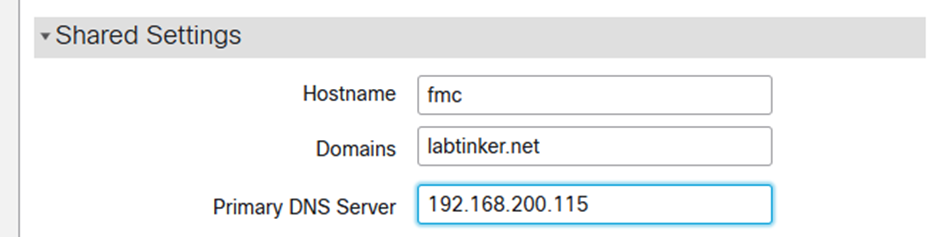
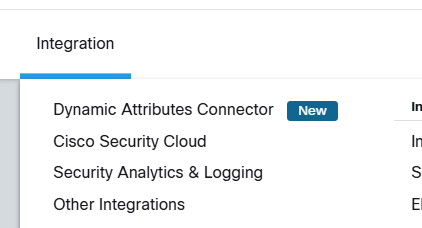
As I was saying, we need to do the FMC integration with ISE. this is done from Integration / Other Integrations
Where you can configure:
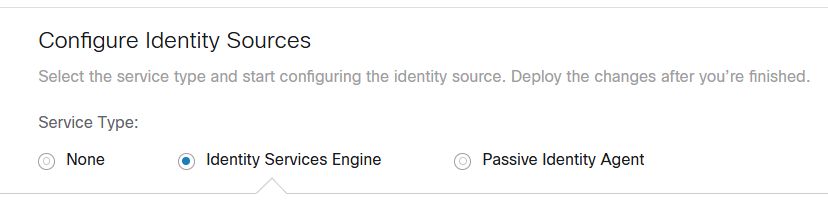
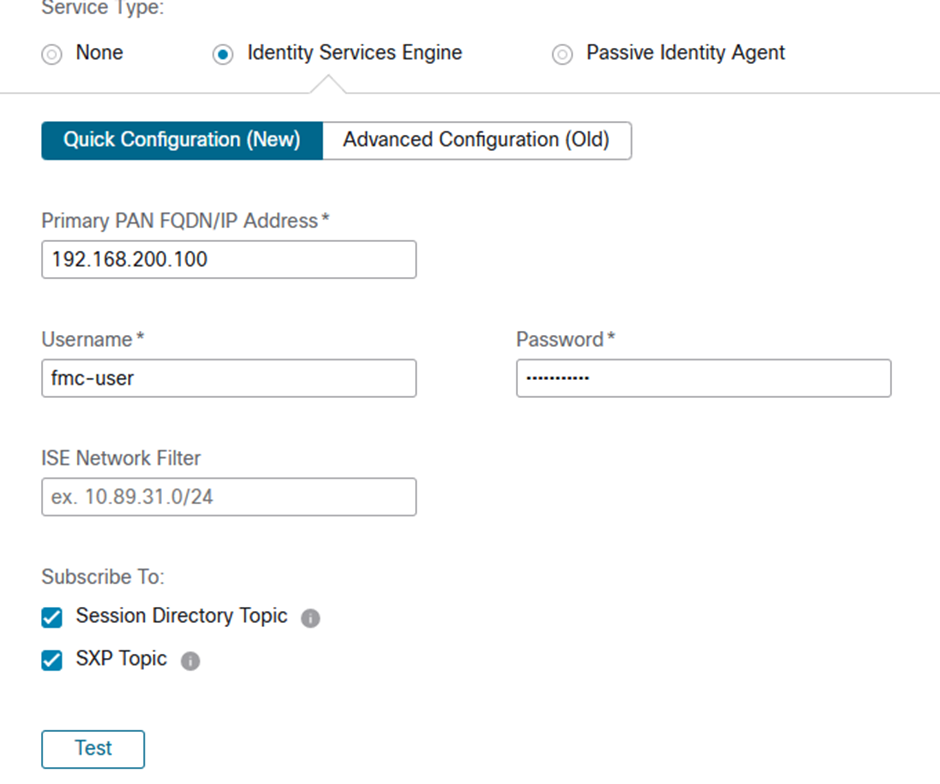
After adding the above and pressing Test we hopefully see something with a tick and lots of green:
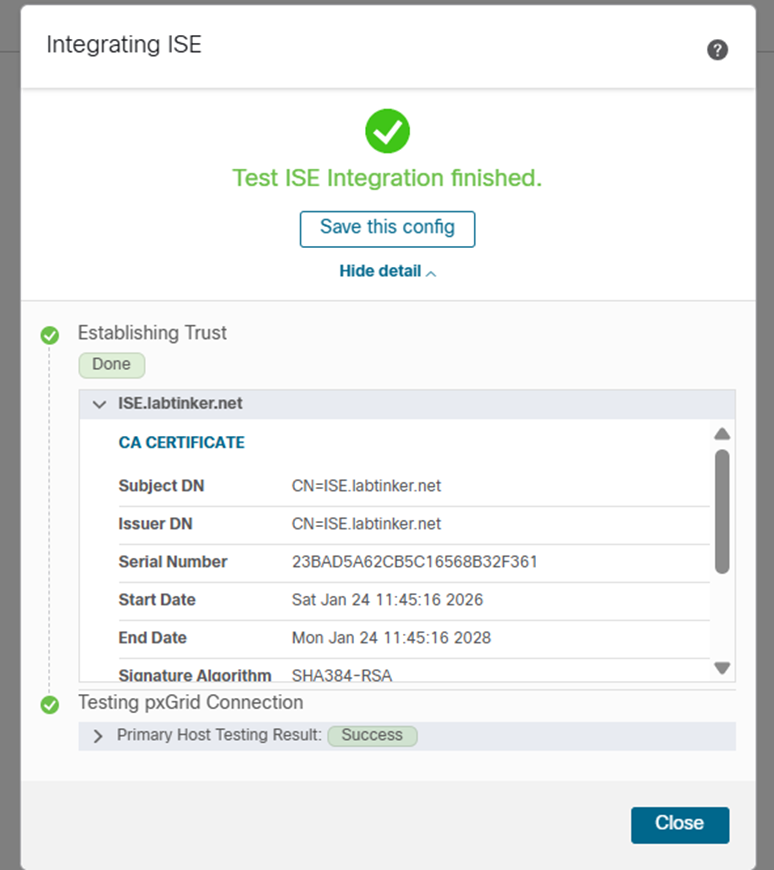
And closing this…
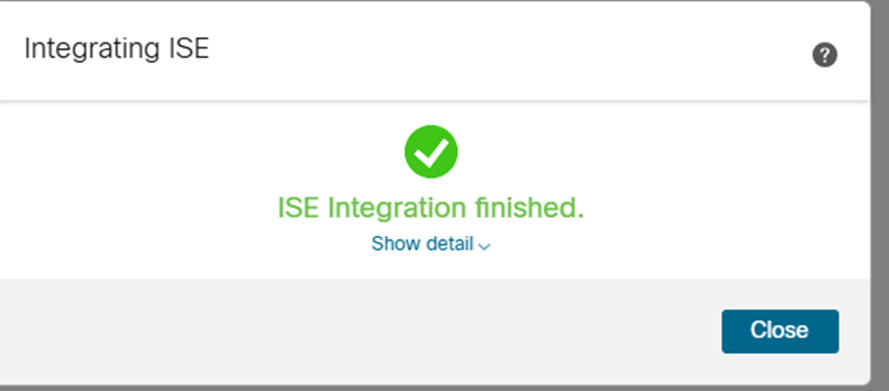
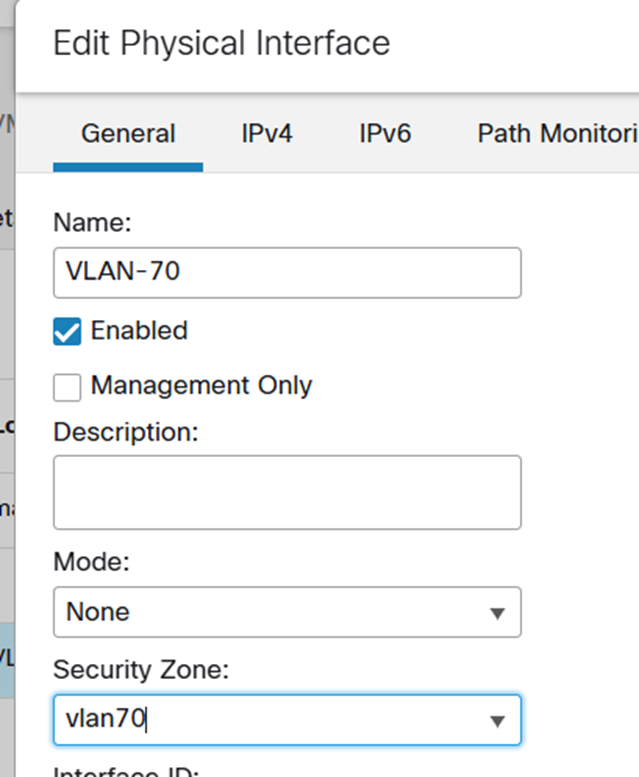
OK, so now we’re integrated, there isn’t an easy place to see the SGT mappings on the FMC that I could find apart from in the access policy… actually, I’m getting ahead of myself.. we need to define a couple of interfaces and zones on the FMC to deploy to the FTD. VLAN 60 is where the source Linux hosts live and VLAN 70 is where the ssh server Linux host lives. So we add these on the FMC in Devices / Device Management where if you click that coy little pencil icon you get to a screen where you can define interfaces.
G0/0
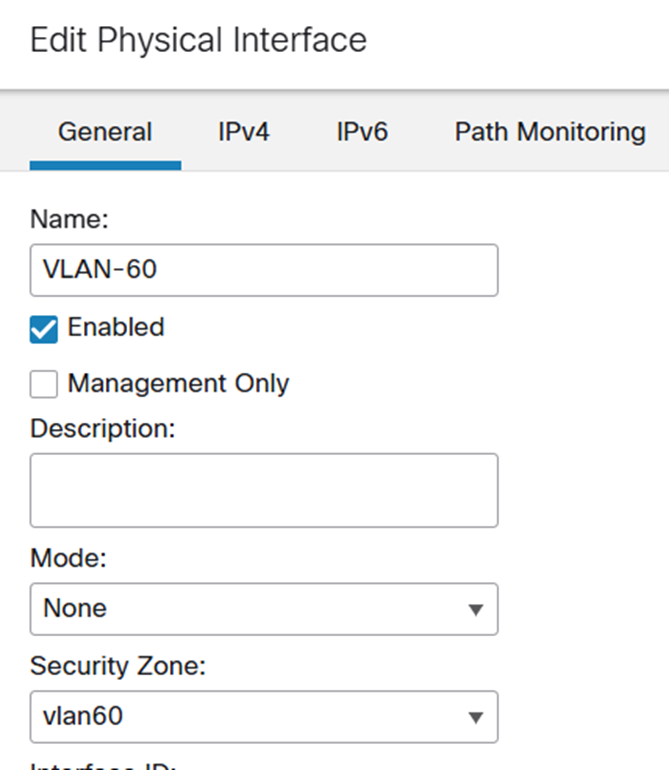
And…
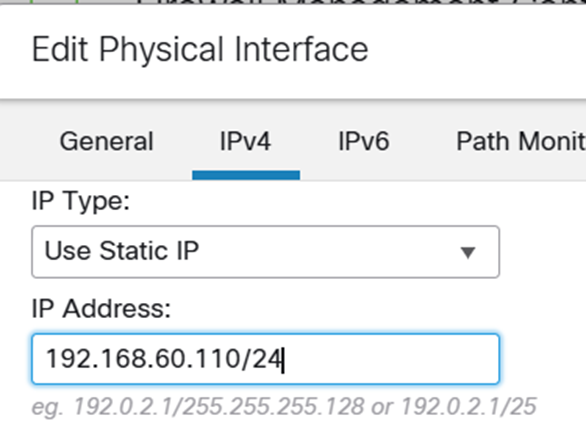
And on g0/1
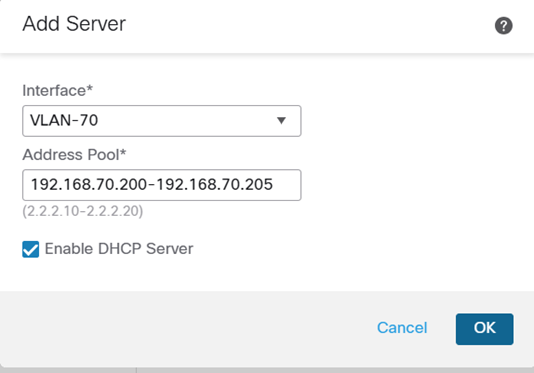
I also defined a DHCP pool on the VLAN-70 interface for the Linux ssh server:
So now we have interfaces and zones, we can add a policy which uses Dynamic Attributes and choose ‘ssh_access’ our SGT from the ISE (yes, it is there)
OK, so we have the ‘any any’ rule so beloved of the lazy firewall admin
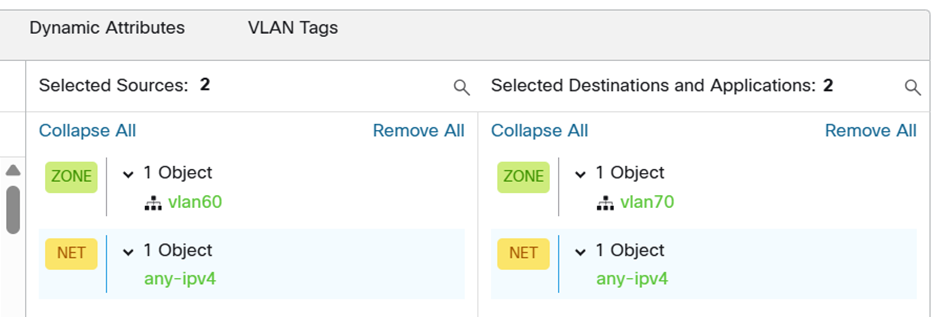
…but wait we can add an dynamic attribute

and what better one than that defined on the ISE?
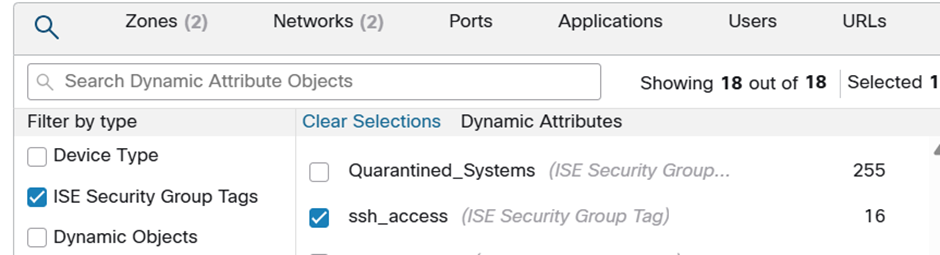
And thus our policy now looks like…
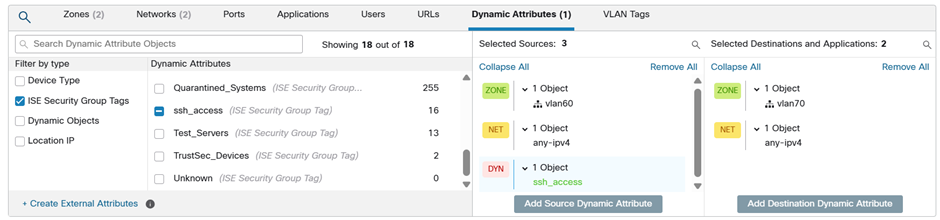
You’re only coming through that any any if you have that SGT…

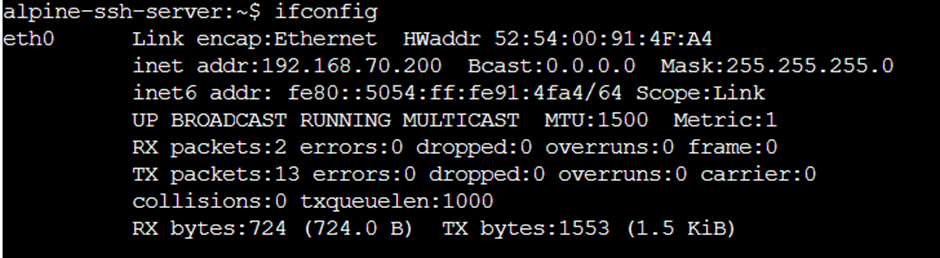
Before we test, let’s check what addresses our trusted and untrusted hosts have:
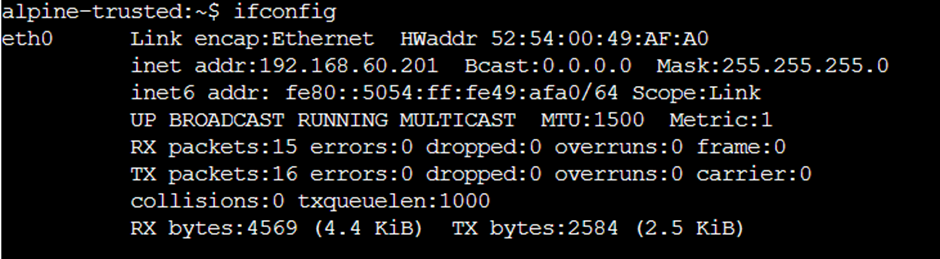
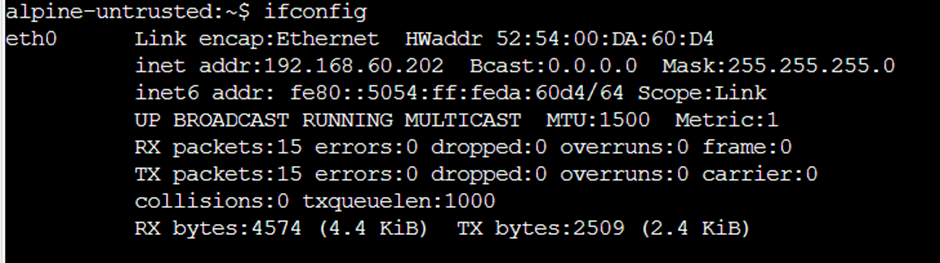
And they’re aiming at…
Can the trusted host get through the firewall to the ssh server?
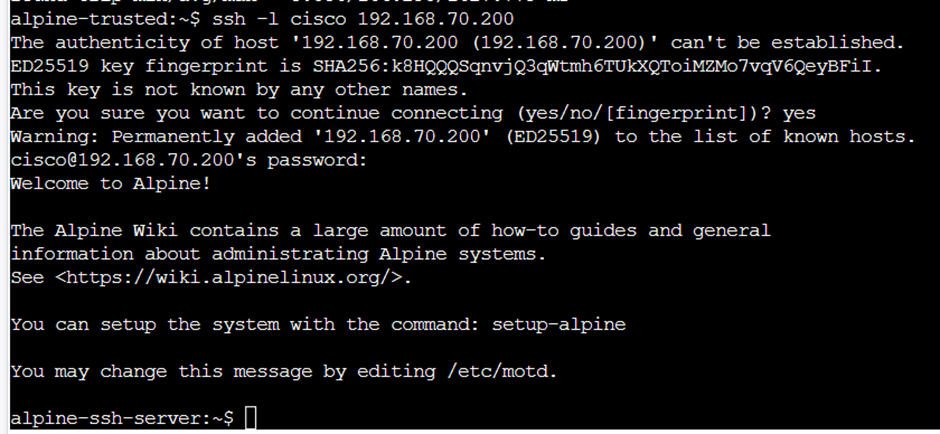
Why yes!!
Can the untrusted host?

Why no.
Let’s check the firewall logs… and we can see that the firewall is blocking the untrusted hostand allowing the trusted one.

Now, I thought it would be easy to move the ‘source SGT’ column to the left to show its presence in one instance but not the the other but I couldn’t work out how to… forgive me, I had fought configured various Cisco elements to get this far and it was nearly tea time.. so take my word for it, I scrolled right and lo and behold the successful traffic had the SGT tag ‘ssh_access‘, as seen in the third column from the right as shown below (I would have added a red rectangle but then I’d have to fight Microsoft Paint which has recently been improved in ways discernible to somebody somewhere but seem to make it much harder to use for everyone else.)

Next time, I might have a crack at AD integration and supplicants and everything.